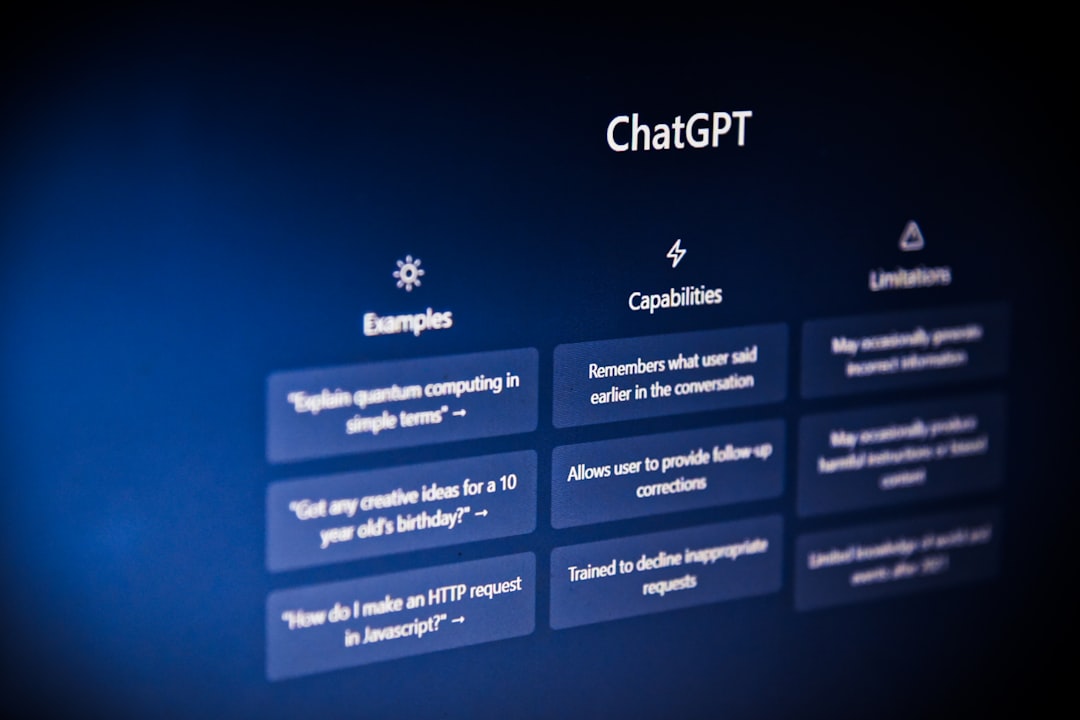
ChatGPT for Designers: 10 Practical Uses
The most useful AI tool for a designer is not an image generator, it is a writing assistant. ChatGPT for designers shines on the verbal half of the job, the copy, naming, briefs, alt text, and structure that surround the visuals, freeing you to spend more time on the craft a model cannot fake. What it cannot do is see your layout or have taste, so it is a first-draft engine, not a decision-maker. Here are ten concrete ways to put it to work, plus the limits to respect.
ChatGPT is the verbal counterpart to the visual AI tools for designers in your stack, and like all of them, output quality tracks input quality, so structured prompts matter.
1. Microcopy and UX Strings
Buttons, empty states, error messages, tooltips, onboarding lines, ChatGPT drafts these fast and in volume. Give it the context and a constraint: “Write three error messages for a failed payment, under 60 characters, reassuring not alarming.” You get options to edit rather than a blank cursor. Always tighten for brand voice; the first draft is a starting point.
2. Naming and Brainstorming
Product names, feature names, project codenames, color names for a palette, ChatGPT is a tireless idea generator. Ask for 30 options in a specific style (“short, friendly, no made-up words”) and cherry-pick. It will not land the perfect name, but it breaks the blank-page paralysis and surfaces directions you would not have reached alone.
3. Writing and Structuring Briefs
Turn a messy client conversation into a structured creative brief. Paste your rough notes and ask ChatGPT to organize them into objective, audience, deliverables, tone, and constraints. It is excellent at imposing structure on chaos, which is exactly what a brief needs. You review and correct the substance; it handles the scaffolding.
4. Alt Text for Accessibility
Describing images for screen readers is important and tedious, a perfect AI task. Describe the image (or in multimodal versions, upload it) and ask for concise, descriptive alt text under a length limit. It produces solid first-pass descriptions you refine for context. This single use can dramatically improve the accessibility of a large project with little effort.
5. Placeholder and Content Tables
Designing a layout needs realistic content, not “lorem ipsum.” Ask ChatGPT to generate plausible sample data: a table of products with names, prices, and descriptions, or a list of realistic user testimonials. Designing against believable content exposes layout problems that filler text hides, like how a long name breaks your card design.
6. Code Snippets
Designers increasingly touch code, and ChatGPT is a capable pair-programmer for small jobs: a CSS animation, an SVG path tweak, a regex, a quick build script, a Figma-to-CSS conversion. Describe what you want and it drafts working code you can test. Verify before shipping, it can be confidently wrong, but it removes a lot of friction from light technical tasks.
7. Summarizing Research and Feedback
Paste a long thread of client feedback or a wall of user-research notes and ask for the key themes and action items. ChatGPT is strong at compression, pulling signal from noise. It turns an hour of feedback triage into a few minutes, leaving you a clean list to design against.
8. Drafting Long-Form Copy
Landing-page sections, about-page copy, case-study narratives, ChatGPT drafts the bones quickly. Give it your key points, audience, and tone, and let it produce a structured first version. The draft will be generic; your job is to inject specifics, voice, and the real story. But editing beats writing from zero.
9. Explaining and Documenting
Need to write a rationale for a design decision, document a component, or explain a concept to a stakeholder in plain language? ChatGPT translates between designer-speak and client-speak well. Ask it to explain your grid system to a non-designer, then polish, and handoff documents get written far faster.
10. Learning and Reference
Use it as an on-demand tutor: “Explain the difference between AP and OpenType features,” or “What are the accessibility contrast ratios I need to hit?” Treat answers as a starting point to verify, not gospel, but as a fast way to orient yourself in an unfamiliar area, it is genuinely useful.
What ChatGPT Cannot Do
Be clear-eyed about the limits, because the failures are predictable:
- It cannot make visual judgments. It does not see your composition, balance, or color, and it has no taste. Visual craft stays human.
- It is confidently wrong. It states incorrect facts, fake “best practices,” and invented details with total assurance. Verify anything load-bearing.
- It is generic by default. Unedited output reads like everyone else’s AI output. Your voice and specifics are what make it usable.
- It is not a designer. It assists the verbal and structural work around design; it does not replace the design.
A Sample Day Using ChatGPT
To make the value concrete, here is how these uses stack up across a normal project day. Morning: paste a sprawling client email and ask for a structured brief with objective, audience, and deliverables. Mid-morning: brainstorm 30 name options for the new feature, then narrow to three. Before lunch: generate realistic placeholder content, a table of products with believable names and prices, to design your layout against instead of lorem ipsum.
Afternoon: draft a dozen UX strings for the empty states and error messages, then edit them to brand voice. Late afternoon: write alt text for the twenty images going into the build, and ask for a CSS snippet for that hover animation you keep fiddling with. End of day: summarize the day’s Slack feedback thread into a clean action list for tomorrow. None of that is design, but all of it is design-adjacent work that would otherwise eat hours you would rather spend on the actual visuals.
How to Get Better Results
The same precision that improves image prompts improves text prompts: give role, task, constraints, and format. “You are a UX writer. Draft three onboarding tooltips for a photo app, under 12 words, warm tone.” Vague in, vague out. Our guide to prompt writing for designers covers this structure in depth, and it applies just as much to ChatGPT as to any image generator.
As with every AI tool in 2026, capabilities and model versions change fast, so re-test your go-to prompts periodically and verify anything you would stake a deliverable on. Used as a sharp assistant rather than a replacement, ChatGPT quietly removes hours of the least creative work from your week.
Frequently Asked Questions
Can ChatGPT replace a graphic designer?
No. ChatGPT handles the verbal and structural work around design, copy, naming, briefs, alt text, and snippets, but it cannot see layouts, judge composition, or exercise taste. It is a first-draft assistant for the words and structure, not a substitute for visual craft or design decisions.
Is ChatGPT good for writing UX copy?
Yes, for first drafts. Give it clear context and constraints, like character limits and tone, and it generates usable button labels, error messages, and onboarding strings in volume. You will still edit for brand voice, since default output is generic, but it removes the blank-page problem and speeds iteration.
Can ChatGPT write alt text for images?
Yes, and it is one of the best uses. Describe the image or upload it in multimodal versions, request concise descriptive alt text under a length limit, and refine for context. This makes improving accessibility across a large project fast and low-effort compared to writing every description by hand.
Should I trust ChatGPT’s factual answers?
Not blindly. ChatGPT states incorrect facts and invented “best practices” with full confidence. Use it to orient yourself or draft quickly, then verify anything load-bearing against a reliable source. Treat it as a fast, fallible assistant, never as an authoritative reference for facts you intend to ship.