How to Make a Logo in Canva (Step-by-Step)
You can make a logo in Canva in under an hour, and if you follow a few design principles, it will look far better than a typical DIY attempt. This step-by-step guide walks through setup, layout, fonts, color, and — critically — exporting a clean transparent file you can actually use. Canva is not a full vector tool, but for a small business, side project, or personal brand, it is more than capable of producing a sharp, professional mark.
New to Canva itself? Run through our Canva tutorial for beginners first so the interface terms below make sense.
Before you open Canva: think first
The biggest logo mistakes happen before any software opens. A strong logo is simple, memorable, and works at any size — from a website header to a favicon. Spend ten minutes deciding three things: what your brand should feel like (modern, playful, premium, technical), whether you want a wordmark (text only) or an icon-plus-text lockup, and your one or two brand colors. For the strategic side of this — naming, concepts, and refinement — our logo design process guide covers the thinking that separates a good logo from a generic one.
Step 1: Set up the canvas
From the Canva homepage, click Custom size and create a square canvas — 500 × 500 px is a sensible working size. A square keeps your logo balanced and is the easiest shape to adapt later into circular profile pictures and other formats.
Avoid starting from Canva’s “logo” templates if you want something original — thousands of others use the same ones. Begin from a blank canvas and build deliberately; you will end up with something that is actually yours.
Step 2: Choose your logo type and layout
Decide on one of two reliable structures for beginners:
- Wordmark — just your name in a well-chosen typeface. The simplest, most timeless option, and the hardest to get wrong.
- Icon + wordmark (lockup) — a small symbol paired with your name. Pull a clean, simple icon from the Elements tab; search a relevant keyword and favor minimal line or solid shapes over busy illustrations.
If you use an icon, keep it geometric and simple. Detailed graphics turn into mush at small sizes — the favicon test is the real test.
Step 3: Pick the right fonts
Type is where most DIY logos succeed or fail. A few rules:
- Use one or at most two fonts. One distinctive font for the name is often enough.
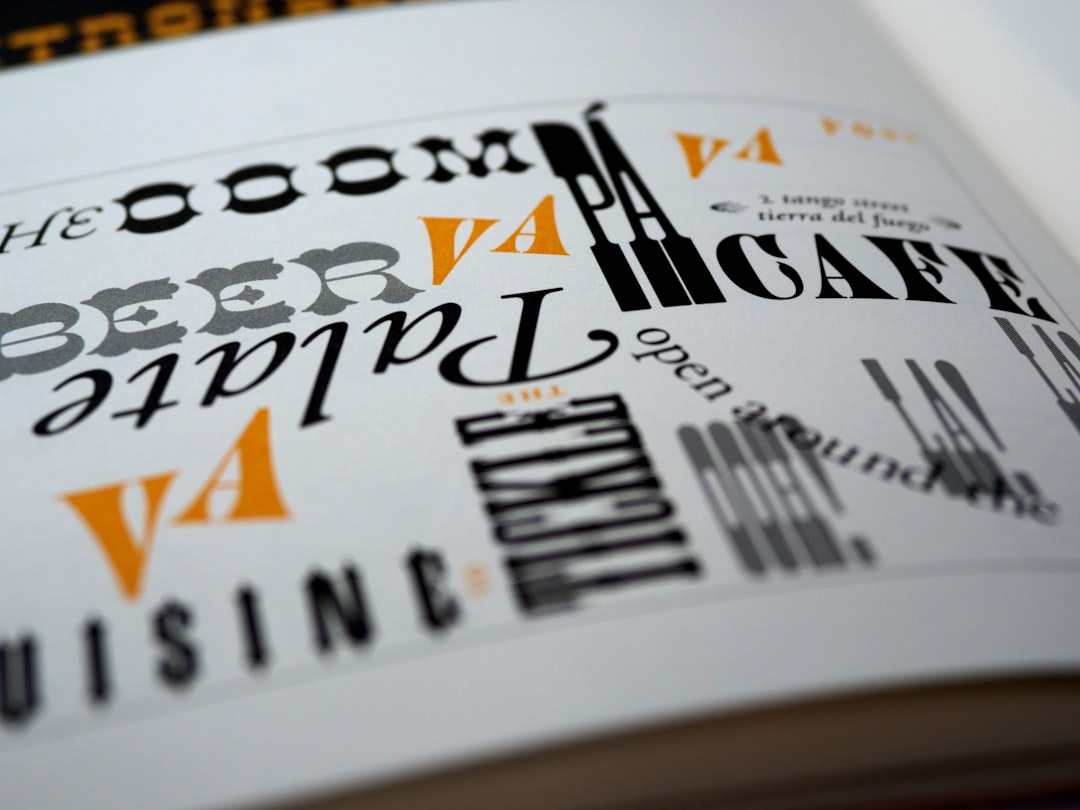
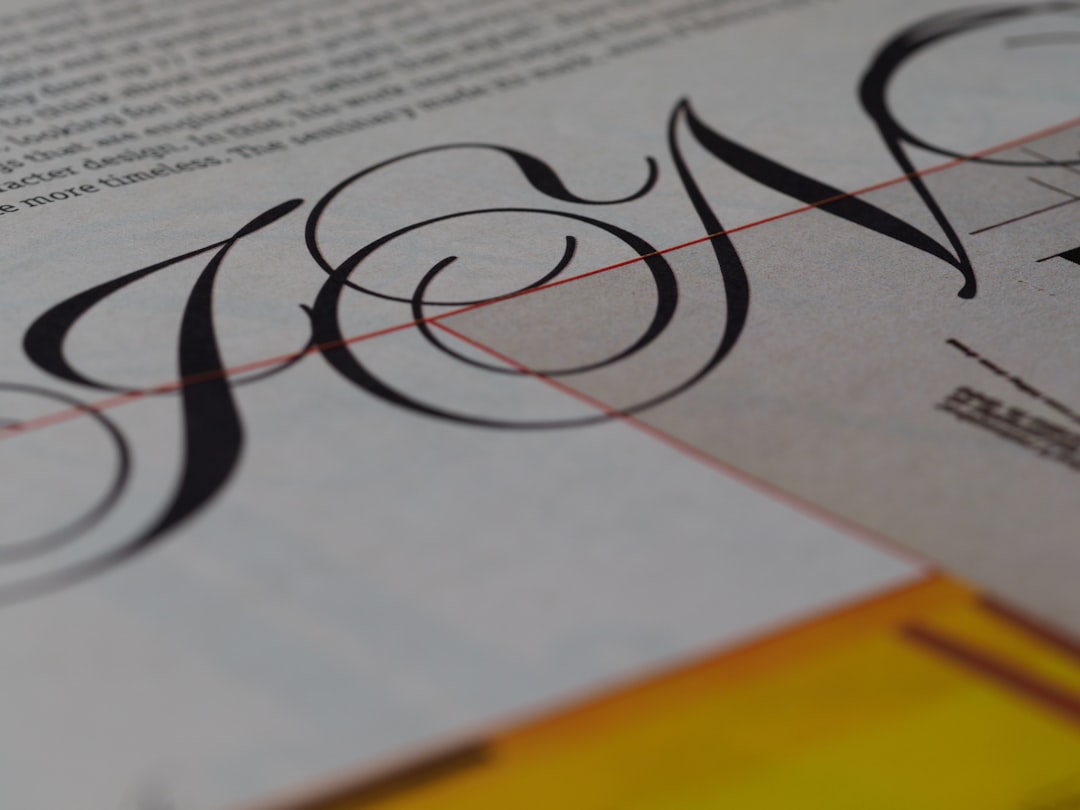
- Pick a font with personality but not gimmick. A clean geometric sans says modern and trustworthy; a refined serif says established and premium. Avoid novelty fonts that will date quickly.
- Adjust letter spacing. Slightly increasing the tracking on a wordmark often makes it look more deliberate and premium.
For specific pairings that work well together, our Canva font pairings guide saves you trial and error.
Step 4: Apply color (sparingly)
Start in black and white. A logo that works in a single color is a strong logo — color should enhance it, not prop it up. Once the shape and type are right, apply your one or two brand colors. Resist the urge to use a rainbow; restraint reads as professional. Make sure your color choices stay legible against both light and dark backgrounds, which is why you will export more than one version in the final step.
Step 5: Refine spacing and alignment
Select your elements and use Canva’s Position tools to center everything precisely. Watch for the pink alignment guides as you nudge things into place. Give the logo generous breathing room — cramped elements look amateurish. Group the finished elements (select all, then Group) so the logo moves and scales as a single unit.
Step 6: Export it correctly
This is the step that ruins otherwise good logos. You need a transparent version so the logo drops cleanly onto any background.
- Click Share → Download.
- Choose PNG as the file type.
- Check Transparent background (this requires Canva Pro — if you need it, see whether Canva Pro is worth it).
- Download.
Export a few versions while you are at it: a full-color one, a solid white version for dark backgrounds, and a solid black version. Having all three on hand means your logo always looks right wherever it lands.
| Version | Use case |
|---|---|
| Full color, transparent PNG | Website header, light backgrounds |
| White, transparent PNG | Dark backgrounds, photo overlays |
| Black, transparent PNG | Documents, stamps, single-color print |
A note on logo limitations in Canva
Canva exports raster (pixel) files, not true vector files like SVG or EPS that scale infinitely without quality loss. For a small business or personal brand, high-resolution PNGs are usually fine. But if you plan to put your logo on large signage, vehicle wraps, or merchandise, you will eventually want a designer to redraw it as a vector. Treat a Canva logo as a strong, low-cost start — not necessarily the final forever asset for a brand that grows.
Frequently Asked Questions
Can you make a professional logo in Canva for free?
Yes, you can design a clean, professional-looking logo on Canva’s free plan. The main limitation is that transparent PNG export — important for placing a logo on any background — requires Canva Pro. You can still create and download a logo for free on a solid background.
What file format should I export a Canva logo as?
Export your logo as a transparent PNG so it sits cleanly on any background. Download full-color, white, and black versions for different uses. Note that Canva exports raster files, not true vectors, so for large-format printing you may later need a designer to recreate it as an SVG or EPS.
Is it legal to use a Canva logo for my business?
Yes, you can use logos you design in Canva commercially. However, you generally cannot trademark a logo built from Canva’s stock elements, because those elements are available to everyone. For a fully ownable, trademarkable mark, build it from original elements or work with a designer.
How long does it take to make a logo in Canva?
A simple wordmark or icon-plus-text logo takes most beginners under an hour, including setup and exporting multiple versions. Spending time beforehand deciding your brand feel, font, and colors makes the actual building faster and produces a noticeably better result.