Print Design: A Complete Guide for 2026
Print is unforgiving in a way screens are not. A web color that is slightly off can be tweaked after launch, but once a job is on press, a wrong color profile, a missing bleed, or a 72 PPI image is permanent, and you are paying for the reprint. Print design is the discipline of getting every one of those production details right before the file leaves your hands. This guide walks through the whole pipeline, color, resolution, bleed and trim, file setup, paper and finishing, and the most common project types, so your designs come back from the printer looking exactly the way you intended.
If you are coming from web or social design, the visual principles carry over, but the technical constraints are different and stricter. The good news is that the rules are concrete and learnable. Get them right once and they become second nature on every job that follows.
How Print Design Differs From Screen Design
The single biggest mental shift is that you are no longer designing in light, you are designing in ink on a physical surface. That changes almost every technical assumption:
- Color is subtractive, not additive. Screens emit light and mix red, green and blue. Print absorbs light and mixes cyan, magenta, yellow and black ink. The two gamuts do not fully overlap, so some screen colors simply cannot be printed.
- Resolution is fixed at output. A screen can zoom; a printed page cannot. You commit to a physical size and a dot density before printing, and there is no rescaling afterward.
- The page has physical edges. Cutting blades have tolerance, so you have to design past the edge of the page and keep important content away from it.
- The substrate changes the result. The same file looks different on glossy coated stock, uncoated matte, or newsprint, because paper absorbs and reflects ink differently.
Everything that follows is, in one way or another, about accounting for these four realities.
Color: Designing in CMYK
Commercial printing reproduces full-color images with four process inks, cyan, magenta, yellow and black, abbreviated CMYK. Your design software builds color by simulating how those inks overlap on paper. The problem is that vivid screen colors, especially saturated blues, greens and oranges, often fall outside the CMYK gamut and shift when converted, which is why a brand blue can come back looking muddy or purple.
Set your document to CMYK from the start rather than designing in RGB and converting at the end. Working in CMYK shows you the achievable color as you go, so there are no nasty surprises at conversion. For brand colors that absolutely must be exact, such as a logo, specify a Pantone (PMS) spot color, a pre-mixed ink the printer applies directly rather than building from process inks. The full breakdown of why screen and print color diverge, and how to convert without losing your colors, is in our guide to RGB vs CMYK for print.
Resolution: Getting Images Sharp
Print quality depends on packing enough image data into each physical inch. The standard for sharp commercial printing is 300 PPI at final print size, large-format work viewed from a distance, like banners, can go lower (100 to 150 PPI), while fine art or premium packaging may push higher.
The catch most beginners hit: an image that looks crisp on screen can be hopelessly low-resolution for print. A photo that is 1000 pixels wide is plenty for the web but only prints sharply at about 3.3 inches wide at 300 PPI. Enlarge it beyond that and it goes soft. You cannot add real detail by upscaling, so source high-resolution images from the start. The difference between the resolution your screen needs and the resolution your printer needs trips up nearly everyone, and we untangle it fully in DPI vs PPI.
Bleed, Trim and Safe Area: Designing for the Cut
Because guillotine cutters have a small margin of error, you cannot rely on color or imagery stopping exactly at the page edge. Three boundaries solve this:
- Bleed: artwork extended past the final edge, usually by 0.125 in (3 mm), so that any color meant to reach the edge actually does even if the cut drifts slightly.
- Trim: the final cut line, the actual finished size of the piece.
- Safe area: an inner margin (typically 0.125 to 0.25 in) where you keep all text and critical elements, so nothing important gets shaved off.
Forget the bleed and you risk thin white slivers along the edges of your printed piece; ignore the safe area and your headline loses its first letter. This is the most common reason a printer rejects a file, and it is entirely avoidable. Our dedicated walkthrough of bleed, trim and safe area shows exactly how to set these up in your document.
Setting Up Your Document Correctly
A clean print file starts with a correctly configured document, not last-minute fixes. Before you place a single element:
- Set the exact final dimensions. Build the document at trim size, not “close enough.” A business card is 3.5 x 2 in; an A4 sheet is 210 x 297 mm.
- Choose CMYK color mode so what you see approximates what prints.
- Add bleed (0.125 in / 3 mm on all sides) in the document setup so the canvas extends past trim.
- Set resolution to 300 PPI for raster work.
- Place high-resolution, CMYK images. Convert RGB photos before placing, or let your layout app manage the conversion on export.
Tools like Adobe InDesign and Affinity Publisher are built for multi-page print layout and handle bleed, color and export cleanly. Illustrator suits single-sheet vector pieces. Canva can produce print-ready PDFs with bleed for simpler jobs, but verify the export settings before ordering.
Exporting a Print-Ready File
The industry-standard handoff format is press-ready PDF, specifically a PDF/X variant such as PDF/X-1a or PDF/X-4, which most online and local printers accept. When exporting:
- Include bleed and crop marks so the printer knows where to cut.
- Embed all fonts (or outline text) so type does not reflow or substitute.
- Confirm images are high-resolution and in CMYK.
- Match the color profile the printer specifies, many use a profile like US Web Coated (SWOP) or a regional FOGRA standard.
Always check your printer’s file-prep page. A 10-minute read of their spec sheet prevents the most common rejections and reprints. When in doubt, ask for a proof, a digital or physical preview of the final piece, before committing to a full run.
Paper, Stock and Finishing
The substrate is part of the design, not an afterthought. A few decisions shape how the final piece feels in the hand:
- Weight, measured in gsm (grams per square meter) or pounds. A flyer might be 130 to 170 gsm; a premium business card 350 gsm or more. Heavier stock signals quality.
- Coating, gloss makes colors pop and resists smudging; matte and uncoated feel tactile and premium but can dull saturated colors; silk sits between the two.
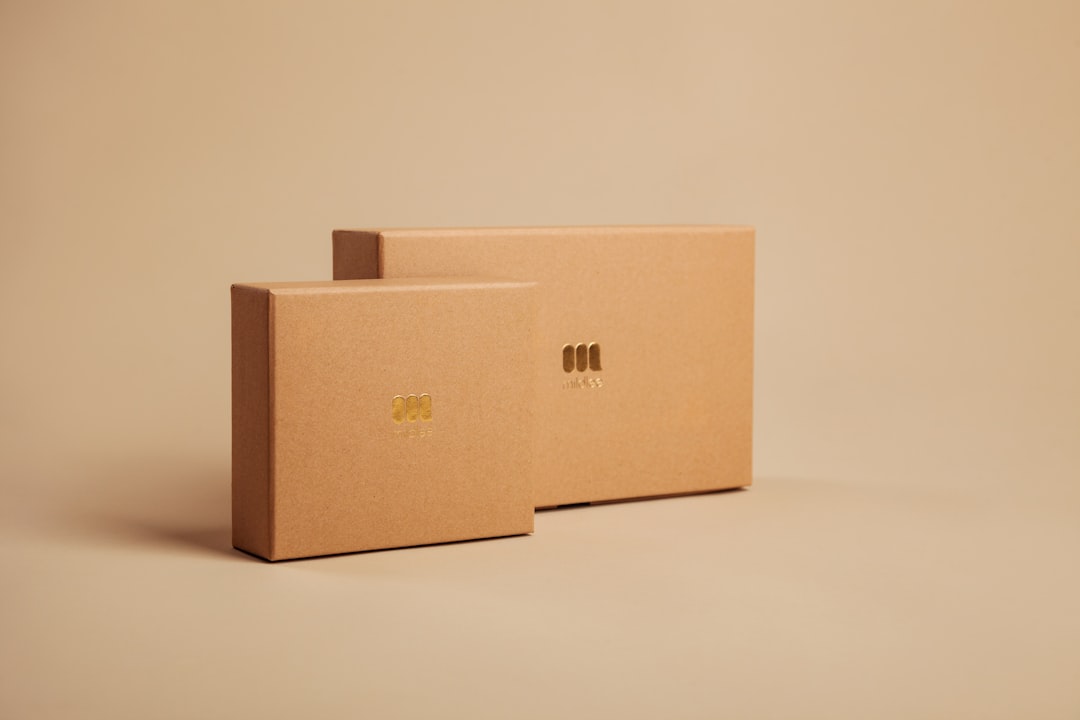
- Finishing, options like spot UV, foil stamping, embossing, debossing and die-cutting add physical texture and shine. These are where print does things a screen never can.
Order a paper sample pack from your printer before a big job. Seeing and feeling the stock in person is the only reliable way to choose, and it costs almost nothing.
Common Print Design Projects
Most print work falls into a handful of recurring formats, each with its own conventions:
- Business cards, small canvas, high stakes; legibility and hierarchy matter more than decoration. See our guide to business card design for sizes, bleed and layout tips.
- Brochures and flyers, multi-panel pieces where fold lines and reading order drive the layout. Our brochure design guide covers fold types and panel planning.
- Posters and large format, designed to read from a distance, with lower acceptable resolution and bold hierarchy.
- Packaging, the most technical category, involving dielines, spot colors and finishing.
- Stationery and books, where consistency, margins and binding allowances come into play.
Typography and Layout for Print
The production rules are only half of print design; the other half is the visual craft, and a few habits separate polished print work from amateur output:
- Set comfortable body text. Print body copy typically sits around 9 to 11 pt, smaller than people expect from screen work, with generous line spacing (leading) of roughly 120 to 145% of the type size for easy reading.
- Use a measured line length. Aim for about 45 to 75 characters per line; longer lines tire the eye, shorter ones fragment the reading rhythm. This is why multi-column layouts are common in brochures and magazines.
- Build on a grid. A consistent baseline grid and column structure keeps margins, alignment and spacing coherent across a multi-page piece, the invisible skeleton behind every professional layout.
- Mind the small type on press. Set small text and fine lines in 100% black only, never a four-color build, so they stay crisp and avoid misregistration where the four inks fail to line up perfectly.
- Pick print-appropriate type. Serif faces with sturdy strokes read well in long-form print body; very thin hairline weights can break up or fill in depending on the stock, so test them.
Print is also where licensing matters: confirm that any typeface you embed in a press-ready PDF is licensed for that use. Most retail and open-source fonts allow it, but verify before you outline and send.
A Pre-Press Checklist Before You Hit Send
Run through this list on every job. It catches the errors that cause almost all reprints:
- Document built at exact trim size, with 3 mm bleed on all sides.
- Color mode is CMYK; spot colors specified where exact color matters.
- All raster images are 300 PPI at final size and in CMYK.
- Text and key elements sit inside the safe area.
- Fonts embedded or outlined; no missing links.
- Exported as press-ready PDF (PDF/X) with crop marks and bleed.
- Printer’s color profile and file spec matched.
- A proof reviewed and approved before the full run.
Print design rewards discipline. The creative work, layout, type, color, is the visible half; the production half is what makes that creativity survive contact with a printing press. Master both and your files come back right the first time.
Frequently Asked Questions
What is print design?
Print design is the practice of creating visual materials intended to be physically printed, such as business cards, brochures, posters and packaging. It combines layout and typography with technical production knowledge, CMYK color, 300 PPI resolution, bleed and trim, and press-ready file setup, so the final printed piece matches the designer’s intent.
What resolution do I need for print?
The standard for sharp commercial printing is 300 PPI at the final print size. Large-format pieces viewed from a distance, like banners and billboards, can use 100 to 150 PPI. Always check resolution at the actual size the piece will print, not at the size it appears on screen.
Should I design in RGB or CMYK for print?
Design in CMYK for anything going to commercial print. CMYK matches the four process inks a printer uses, so you see achievable colors as you work and avoid the color shifts that happen when bright RGB screen colors are converted at the end. Use Pantone spot colors when a brand color must be exact.
What file format should I send to a printer?
A press-ready PDF, ideally a PDF/X variant such as PDF/X-1a or PDF/X-4, is the industry standard. Export it with bleed, crop marks, embedded or outlined fonts, CMYK color, and the color profile your printer specifies. Confirm requirements on the printer’s file-prep page before ordering.
What is bleed in print design?
Bleed is artwork extended past the final trim edge, usually by 0.125 in (3 mm), so that any color or image meant to reach the edge still does even if the cutting blade drifts slightly. Without bleed, you risk thin white slivers along the edges of the finished printed piece.