Best Digital Illustration Tools in 2026
The right tool depends entirely on what you draw. The best digital illustration tools in 2026 split into three camps, vector editors, raster painting apps, and 3D software, and picking from the wrong camp will fight you on every project. This guide compares the leading tools in each category with real pricing and honest trade-offs, so you can match the software to your style and budget instead of buying the one everyone happens to mention.
Tool and style are linked: vector apps make flat and line work; painting apps make painterly and textured work; 3D apps make dimensional renders. If you are still deciding which style to pursue, our overview of illustration styles every designer should know maps styles to outcomes, and this guide maps them to software.
Vector Illustration Tools
Vector tools build art from editable paths and points, ideal for logos, icons, flat illustration, and anything that must scale infinitely. (If the vector-versus-raster distinction is fuzzy, our explainer on vector graphics covers why vectors stay crisp at any size.)
Adobe Illustrator
Adobe Illustrator is the industry standard for vector work, and the default many studios expect you to know. It has the deepest toolset, broadest compatibility, and produces native AI files. The downside is the subscription model, roughly the price of a streaming bundle each month, billed as part of Creative Cloud, with no permanent ownership. If you work professionally and collaborate with other designers, the ecosystem lock-in often makes it worth it.
Affinity Designer
Affinity Designer is the strongest Illustrator alternative: a one-time purchase (no subscription) with a capable vector toolset and a unique persona mode that blends vector and raster in one app. For freelancers and studios resisting recurring fees, it delivers most of what Illustrator does at a fraction of the lifetime cost. The trade-off is a smaller ecosystem and occasional friction exchanging files with Illustrator-heavy teams.
Inkscape
Inkscape is free, open source, and works natively in SVG, which makes it excellent for web-bound vector work and icon design. It is less polished than the paid options and slower on very complex files, but for students, hobbyists, and anyone on zero budget, it is genuinely capable. Many professional icon sets could be built entirely in Inkscape.
Raster Painting Tools
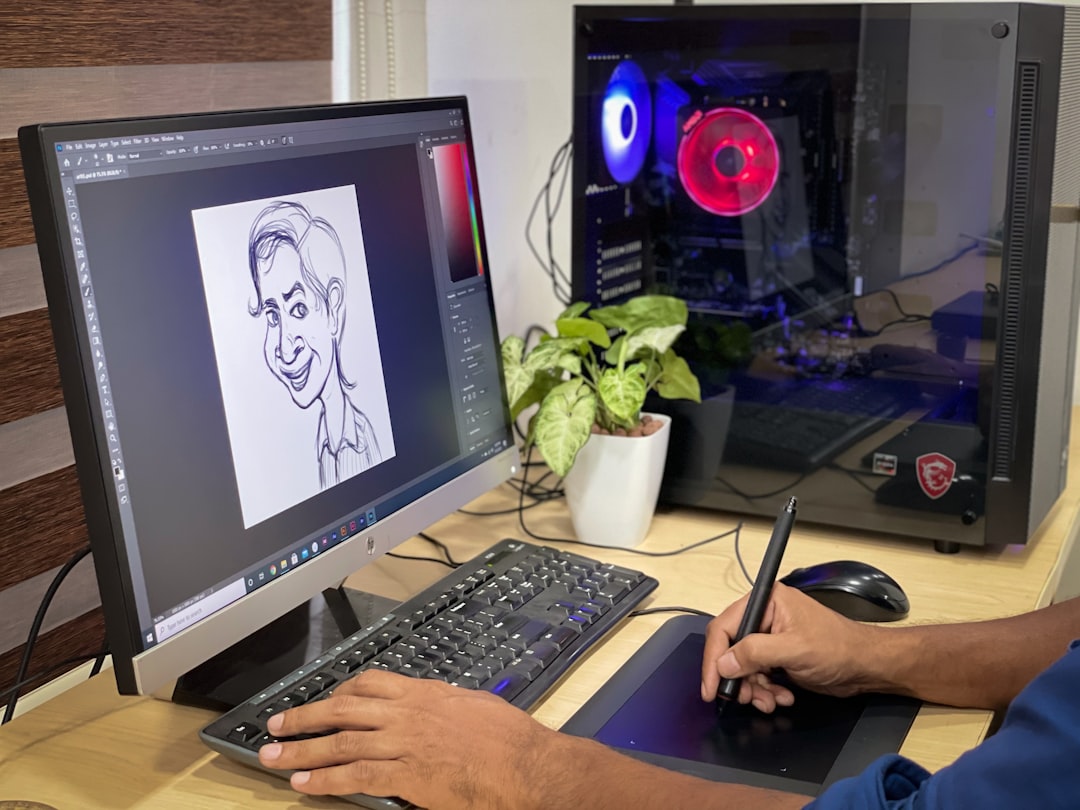
Raster tools paint in pixels with brushes, perfect for painterly, textured, and detailed illustration where you want brushwork and blended color. These reward drawing skill and a pressure-sensitive tablet.
Procreate
Procreate is the iPad illustration app that reshaped the field: a one-time purchase (no subscription), a natural drawing feel, and an enormous brush ecosystem. Paired with an Apple Pencil it is the go-to for sketching, comics, character work, and painterly illustration on the go. Its main limit is that it is iPad-only and built for raster work, so it is not a vector or print-layout tool. For the price of a couple of coffees, it is the best value in illustration software.
Adobe Photoshop
Photoshop remains a powerhouse for digital painting, photo-based illustration, and texture work, with the deepest brush engine and compositing tools in the business. It is subscription-based like the rest of Creative Cloud. For illustrators who composite photography, paint with heavy texture, or need pixel-level control, it is still unmatched, though many now sketch in Procreate and finish in Photoshop.
Krita
Krita is free, open source, and purpose-built for digital painting, with a brush engine that rivals paid apps and strong support for comics and concept art. It runs on Windows, Mac, and Linux. For painters who cannot or will not pay for Photoshop, Krita is the standout free choice and is genuinely production-capable.
3D Illustration Tools
3D tools build and render dimensional scenes, the source of the premium, tactile look covered in our flat vs 3D illustration comparison. They have steeper learning curves than 2D tools.
Blender
Blender is free, open source, and astonishingly powerful, a full 3D suite for modeling, texturing, lighting, rendering, and animation. It powers a huge share of the 3D illustration you see in tech branding. The catch is the learning curve, which is steep, but the price (free) and the depth make it the default serious choice for 3D illustration in 2026.
Spline
Spline is a browser-based 3D tool designed for accessibility, with a free tier and a far gentler learning curve than Blender. It is built for web-ready 3D, interactive scenes, and quick dimensional illustration, making it the friendliest on-ramp for designers who want 3D output without learning a full production suite. For simple 3D hero images and UI accents, it is often all you need.
Comparison at a Glance
| Tool | Type | Pricing model | Best for |
|---|---|---|---|
| Adobe Illustrator | Vector | Subscription | Professional vector standard |
| Affinity Designer | Vector | One-time purchase | Subscription-free vector work |
| Inkscape | Vector | Free | SVG, icons, zero budget |
| Procreate | Raster | One-time (iPad) | Painterly work on iPad |
| Photoshop | Raster | Subscription | Painting, photo, texture |
| Krita | Raster | Free | Free digital painting |
| Blender | 3D | Free | Full 3D illustration |
| Spline | 3D | Free tier | Accessible web 3D |
Which Tool Should You Choose?
Match the tool to your work and wallet:
- Vector and icons, professional: Adobe Illustrator if you collaborate widely; Affinity Designer to avoid subscriptions.
- Vector on zero budget: Inkscape.
- Painterly and character work: Procreate on iPad, or Krita for free on desktop; Photoshop for heavy compositing.
- 3D illustration: Spline to start fast, Blender for full depth.
A pragmatic 2026 stack for a generalist designer is Affinity Designer or Illustrator for vector, Procreate for sketching and painting, and Spline for occasional 3D, covering nearly every style at a sane cost. Resist buying everything; one vector tool and one raster tool will carry you for years. Add 3D only when a project genuinely calls for it.
Free vs Paid: Do You Need to Spend?
You can produce professional illustration entirely on free tools, Inkscape for vector, Krita for painting, Blender for 3D, without paying a cent. Paid tools (Illustrator, Photoshop, Procreate, Affinity) buy polish, smoother workflows, broader compatibility, and easier collaboration, which matters most when you work with teams or clients who expect industry-standard file formats. Start free to learn the craft; upgrade when a specific friction, file exchange, a missing feature, a clunky workflow, is actually costing you time or work.
Frequently Asked Questions
What is the best digital illustration tool for beginners?
For painterly work, Procreate on iPad offers the gentlest learning curve and a one-time price. For vector work, Inkscape is free and capable, while Affinity Designer is a polished, subscription-free option. Beginners should start with the camp that matches their style, raster for painting, vector for flat and icon work.
Is Procreate better than Photoshop for illustration?
It depends on the work. Procreate excels at sketching and painterly illustration on iPad with a natural feel and one-time price, but it is iPad-only and raster-focused. Photoshop offers deeper compositing, texture, and photo-based tools on desktop. Many illustrators sketch in Procreate and finish in Photoshop, using both.
Can I do professional illustration with free software?
Yes. Inkscape (vector), Krita (digital painting), and Blender (3D) are all free, open source, and genuinely production-capable. Paid tools buy polish, smoother workflows, and easier collaboration with industry-standard file formats, but the free options can produce fully professional work for those on a budget.
What software do I need for 3D illustration?
Blender (free) is the powerful, full-featured standard for 3D illustration, though it has a steep learning curve. Spline (free tier, browser-based) is far more accessible and ideal for web-ready 3D and simple hero images. Start with Spline to learn the basics, then move to Blender for greater depth.
Should I buy Adobe Illustrator or Affinity Designer?
Choose Illustrator if you work professionally with teams that expect AI files and the Creative Cloud ecosystem. Choose Affinity Designer if you want a capable vector tool without a recurring subscription, it is a one-time purchase that handles most of what Illustrator does at a far lower lifetime cost.