How to Use Design Mockups and Where to Find Them
Design mockups turn a flat artwork file into something that looks real — a logo on a storefront, a label on a bottle, a poster on a wall. They are how designers help clients picture the finished thing instead of squinting at a JPG. This guide covers what mockups are, how to use them well, where to find good ones, and the mistakes that make them look amateur.
Mockups are a presentation tool that sits across many disciplines. They are especially useful at the end of a logo design process and when finalizing a packaging design, where seeing the work in context is the difference between an approval and a “can you show me what it actually looks like?”
What a Design Mockup Is
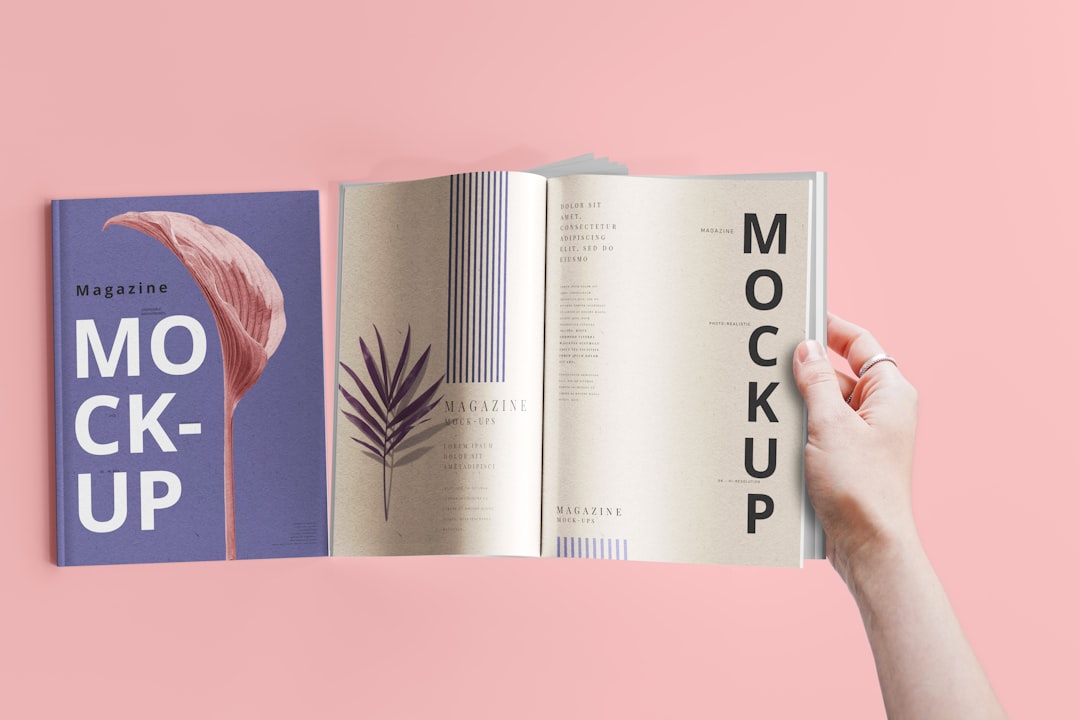
A mockup is a template — usually a high-quality photo or 3D render — with a placeholder area where you drop in your own design. The template handles the realistic lighting, shadows, perspective, and texture; you supply the artwork. The result looks like a photograph of your design existing in the real world, even though nothing was physically printed.
The most common type is a layered file with a smart object in Photoshop. You open the smart object, paste your design, save, and the template wraps it in the scene’s lighting and perspective automatically. Other mockups are editable in Figma, Canva, or dedicated online generators, each with its own placeholder mechanism.
Why Mockups Matter
Clients and stakeholders are not always good at reading flat design files. A logo on a white background is abstract; the same logo on a business card, a sign, and a t-shirt is concrete and persuasive. Mockups close that imagination gap and do real work for you:
- They sell the work. A design shown in context feels finished and considered, which makes approval easier.
- They reveal problems. Seeing a logo at small sizes or a label wrapped around a curve surfaces issues a flat file hides.
- They make portfolios shine. In-context shots read as more professional than raw artwork files.
- They speed up decisions. Stakeholders respond faster to something that looks real than to a technical file.
How to Use a Mockup Step by Step
The exact steps vary by tool, but the smart-object workflow is the most common:
- Pick a mockup that fits the context. Match the scene to the brand — a premium product deserves a clean, premium setting, not a busy stock scene.
- Open the placeholder layer. In Photoshop, double-click the smart object; in Figma or Canva, select the placeholder frame.
- Drop in your design at the right resolution. Use a high-resolution version so it stays crisp when the template scales it.
- Fit it to the placeholder. Align your artwork to the guides so it sits correctly in the scene’s perspective.
- Save and return. Saving the smart object applies the scene’s lighting and shadows back onto your design.
- Adjust if needed. Tweak color or shadow opacity so the design blends naturally rather than looking pasted on.
Choosing the Right Mockup
The wrong mockup undermines good work. A few selection rules keep your presentations sharp:
- Match the realism to the brand. Minimal brands suit clean, neutral scenes; lively brands can take more lifestyle context.
- Use high resolution. Pixelated or low-res mockups make even great design look cheap.
- Keep the scene from competing. The mockup should showcase your design, not distract from it with a busy environment.
- Show multiple touchpoints. For branding, a small set — sign, card, packaging, screen — tells the story better than one hero shot.
Where to Find Design Mockups
There are plenty of sources for design mockups, free and paid:
- Free libraries — sites that offer free PSD and Figma mockups are great for getting started, though selection and licensing vary, so always check the license before client work.
- Premium marketplaces — paid marketplaces offer large, curated, high-quality libraries with clear commercial licensing, which matters for professional projects.
- Online generators — browser-based tools let you upload a design and download a mockup in minutes without opening Photoshop, ideal for quick presentations.
- Build your own — photographing a real object and creating your own smart-object template gives you unique, fully licensed mockups no one else has.
Whichever source you use, read the license. “Free” does not always mean “free for commercial use,” and using a mockup outside its terms in client work is a real risk worth avoiding.
Common Mockup Mistakes
- Low-resolution artwork. A crisp template with a fuzzy design dropped in looks worse than a flat file.
- Ignoring perspective. Artwork that does not follow the scene’s angle looks pasted on and breaks the illusion.
- Overusing the same template. If every portfolio piece uses the identical famous mockup, the work blends together and looks generic.
- Letting the scene outshine the design. The mockup is the frame, not the painting.
- Skipping the license check. Always confirm commercial rights before showing client work.
Mockups for Different Disciplines
Mockups are not just for logos. Nearly every design discipline has a contextual mockup that makes the work easier to evaluate and approve:
- Branding — stationery, signage, and merchandise mockups show an identity working across touchpoints, which is far more convincing than a logo on white.
- Packaging — box and label mockups reveal how a design wraps around real product geometry and reads on a shelf, surfacing problems a flat dieline hides.
- Web and app — device frames place a screen design in a phone or laptop, helping non-designers picture the final product.
- Print and apparel — poster, book, and t-shirt mockups confirm scale, placement, and contrast before anything goes to a printer.
Choosing the right kind of mockup for the discipline is half the battle. A packaging concept presented as a flat artboard invites confusion; the same concept on a realistic box mockup feels finished and ready to approve.
Building Your Own Mockup Library
Over time, the most efficient move is to assemble a small personal library of reliable, well-licensed mockups you return to — and even build a few of your own. Photographing a real object against clean lighting and converting the surface into a smart-object placeholder gives you a unique template no competitor has, with licensing you fully control. A handful of trusted, high-quality mockups you know inside out will serve you better than endlessly hunting for new ones on every project.
Frequently Asked Questions
What software do I need to use mockups?
It depends on the mockup. Layered PSD mockups with smart objects need Photoshop, while many modern mockups work in Figma or Canva. Online mockup generators require no software at all — you upload your design in a browser and download the result, which is ideal for quick presentations.
Are free mockups okay for client work?
Often yes, but always read the license first. Some free mockups allow commercial use and some do not, and a few require attribution. For professional client projects, confirm the commercial rights before delivering, or use a premium mockup with clear licensing to avoid any risk.
What is a smart object mockup?
A smart object is a special layer in Photoshop that lets you drop your design into a template. You double-click it, paste your artwork, and save — the template then automatically applies its realistic lighting, shadows, and perspective to your design, making it look like a real photograph.
How many mockups should I show a client?
Enough to tell the story without overwhelming. For a logo or brand, a small curated set showing key touchpoints — a sign, a card, packaging, and a screen — communicates the identity far better than a single shot, while still keeping the presentation focused and easy to review.